Diablo 4 Loot Filter
Import loot filters from the game, tweak them in the editor, export them as a code and share them with the community.

 Barbarian
Fury

 Druid
Spirit

 Necromancer
Essence

 Rogue
Energy

 Sorcerer
Mana
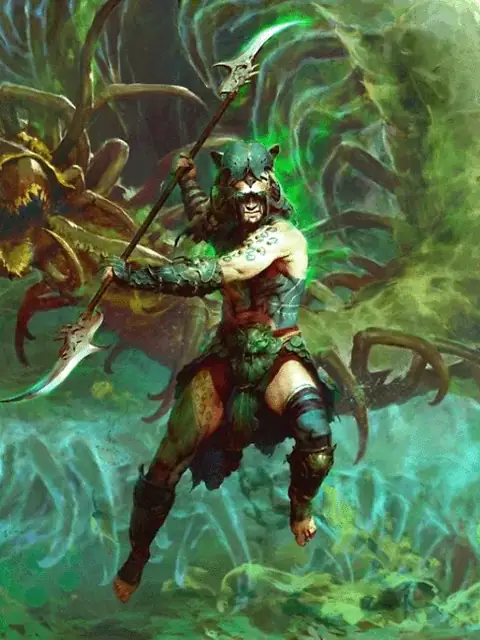
 Spiritborn
Vigor

 Paladin
Faith
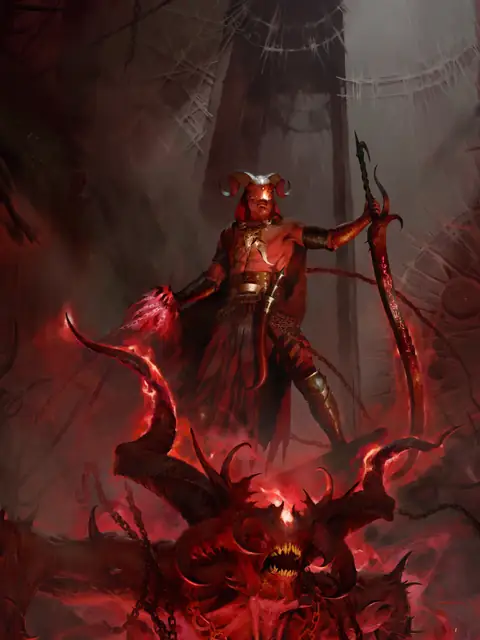
 Warlock
Wrath
No loot filters yet.
+ Create new loot filterHow to import the filter in Diablo IV
- Copy the import code above.
- Open the Loot Filter in game, choose “New Filter” and click “Import Loot Filter”.
- Paste the code, confirm and activate the filter – no restart needed.
Console: importing a code only works on PC. Use the rule list below to rebuild the filter by hand.
Questions about loot filters
What does a loot filter do in Diablo 4?
A loot filter decides how dropped items are labelled on the ground. Every rule has one of four visibility settings: Show, Hide Text Label, Recolor or Hide All. Rules are checked from top to bottom and the first matching rule decides.
How do I use a filter from this list?
Copy the import code, open the loot filter window in the game, choose to create a new loot filter and import it with the code. The filter is available at once and can be switched on and off with a hotkey.
Do loot filters work on console?
The filter itself works on every platform, but importing by code needs a way to paste text. Every filter page lists all rules in plain text, so you can rebuild a filter by hand.
Loot filters at a glance
- A loot filter holds up to 25 rules. They are checked from top to bottom; the first rule that matches an item decides.
- A rule only applies when an item meets all of its conditions. A rule without conditions applies to every item.
- Each rule has one visibility setting: Show, Hide Text Label, Recolor or Hide All.
- Limits per condition: Affix(es) 15 · Unique(s) 10 · Talisman Set(s) 5
Loot Filter Editor · Matching guide: Loot Filter for Diablo 4 Season 15: 4 Import Codes + Guide